Welcome to the KidCAD.xyz Education Portal!
3D design and 3D printing for your classrooms. Sparky the dragon guides every student, and parents stay in control of their child's account from the first day to graduation.

One class, start to finish

The teacher sets up the class
Students, PINs, safety rules and the class end date, in one place.
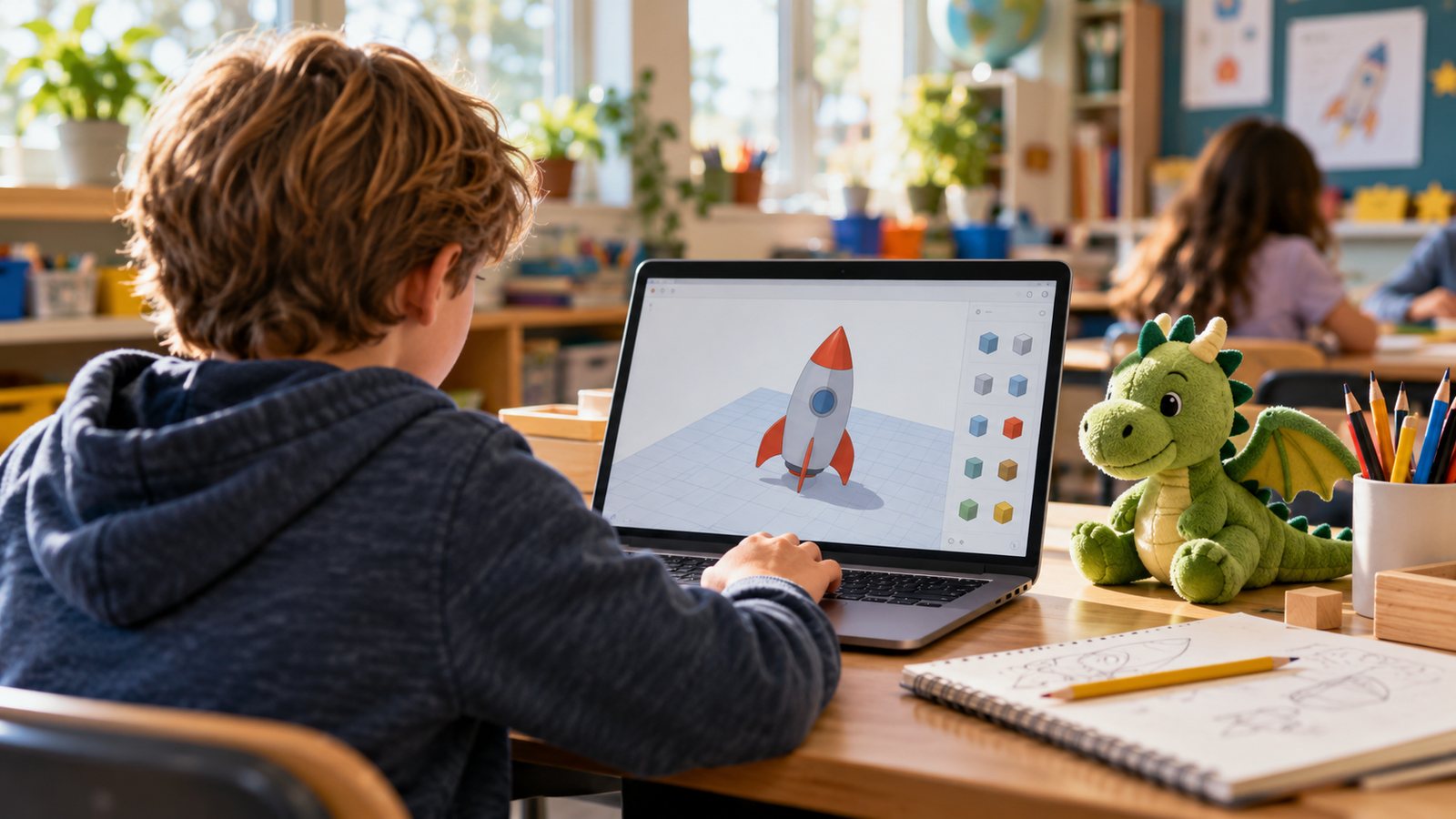
Students design
They describe an idea, draw it, or build it from shapes. Sparky helps on every screen.
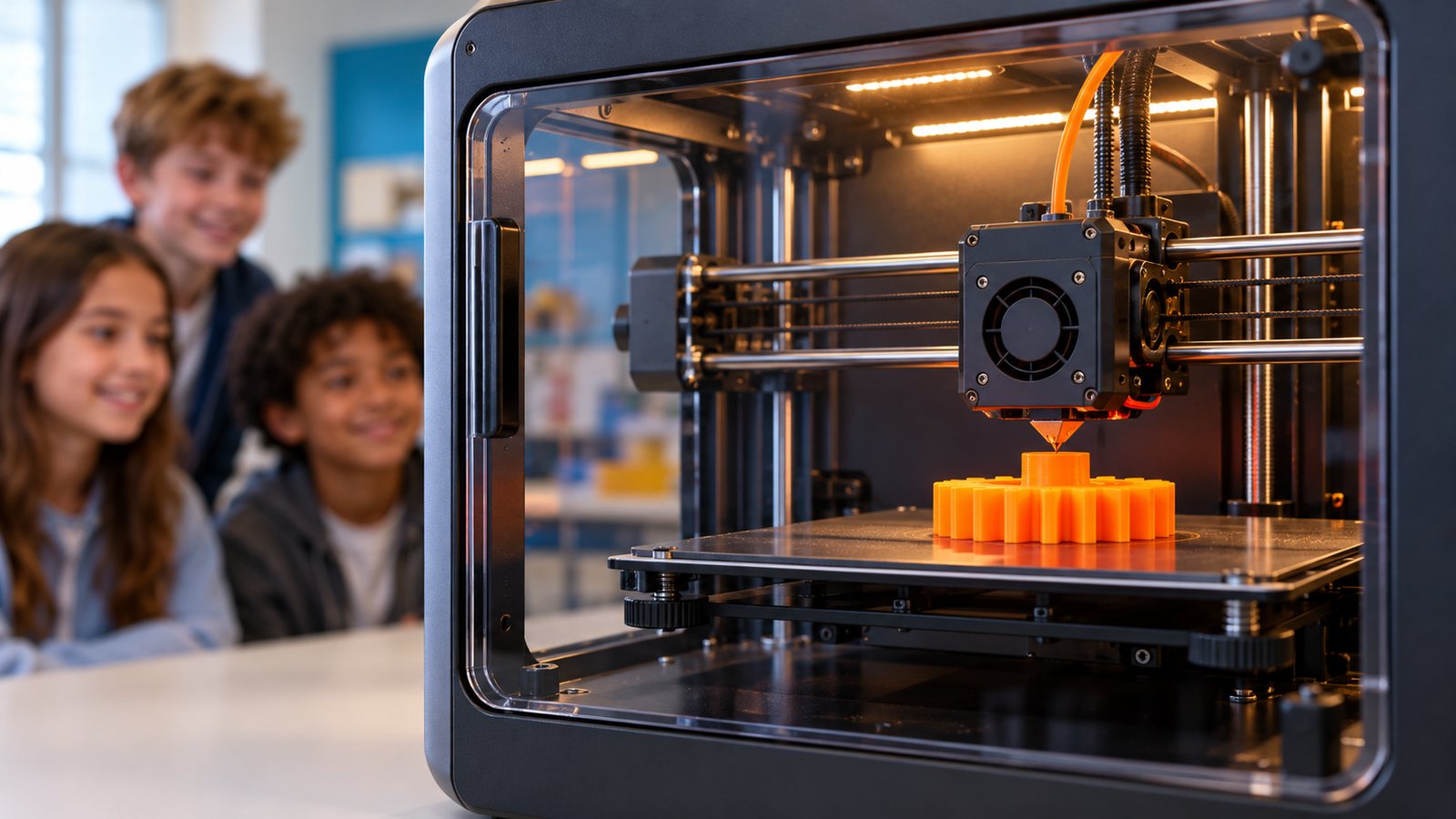
The class prints it
KidCAD checks the model and gets it ready for the classroom printer.
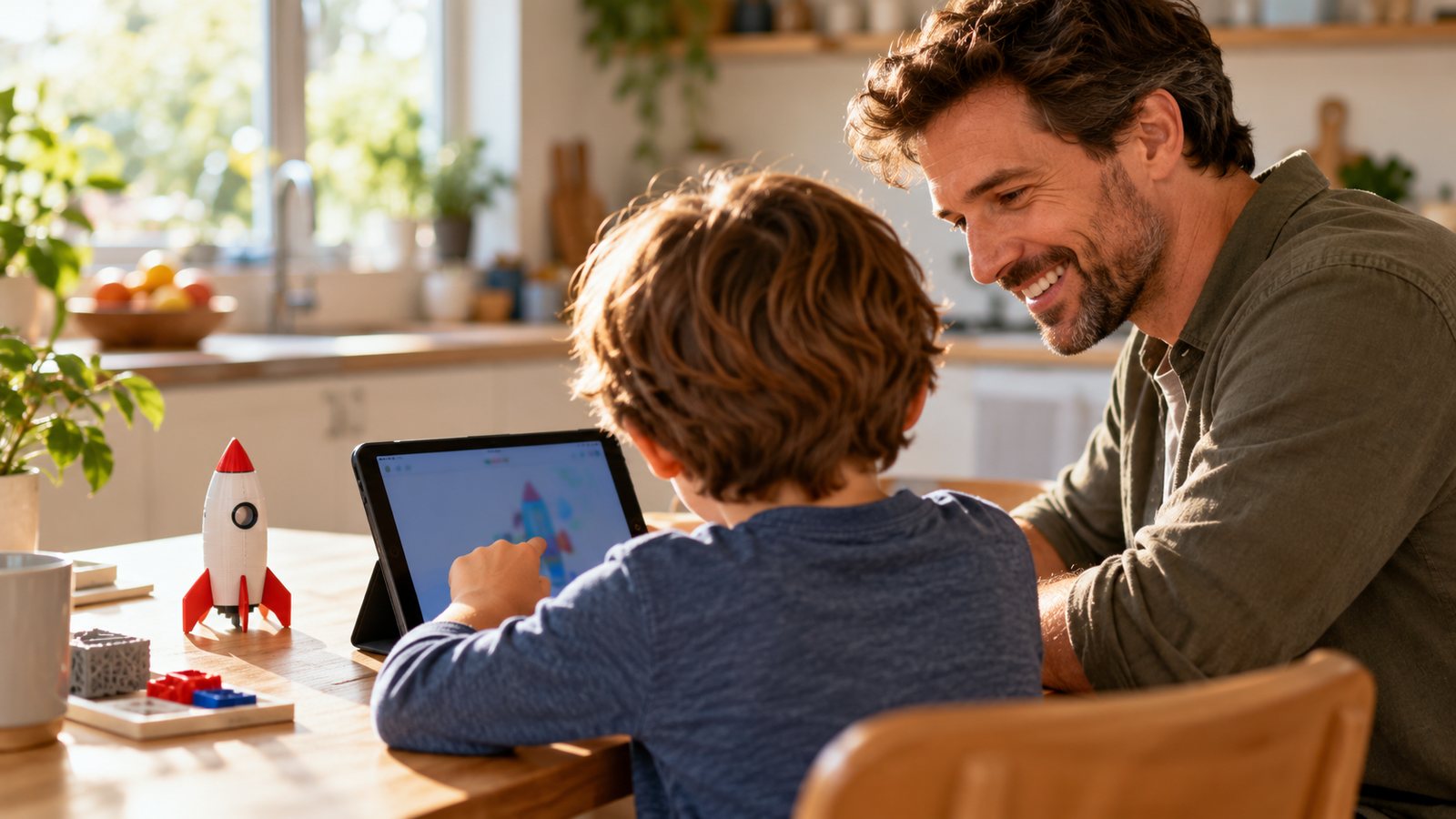
Families see it at home
Parents see everything their child makes, and can print it on their own printer.


What every school gets
A KidCAD built for your school
We look at your plan or idea and build a version just for you, with its own page for your families.
Works offline in class
KidCAD runs on your computers with its own AI. Student work is saved to each account online, never kept on school machines.
Parents in control
Parents link to their child's account, see everything they make, and choose their email updates.
The school never owns a child's account
When a class ends, the school's access ends that day. The family keeps the work.
Nothing published without a parent
Every build, photo and screenshot needs a parent's approval, every time.
One account, first grade to college
The account follows the student from school to school. At 18, it becomes theirs.

Ideas students can hold
Students turn their ideas into real objects: rockets, gears, bridges, name tags. Teachers get ready-made projects, step-by-step tutorials and safety settings for every class. KidCAD V1 is free and open source, so students can keep going at home.
How KidCAD works for a school, step by step
From the first conversation to the last day of class: how a school joins, how families connect, and how students keep designing and printing at home.

The school signs up
Send us a plan request and we talk about your students, classes, computers and printers. We write a plan and a price for your school. Once the school signs it, we set everything up:
- your school's own KidCAD for your computers, with the features your classes need
- your school's page for families, like yourschool.kidcad.xyz
- your school login, for the people the school names
Schools are added by the KidCAD team under their signed plan. There is no self sign-up for schools.
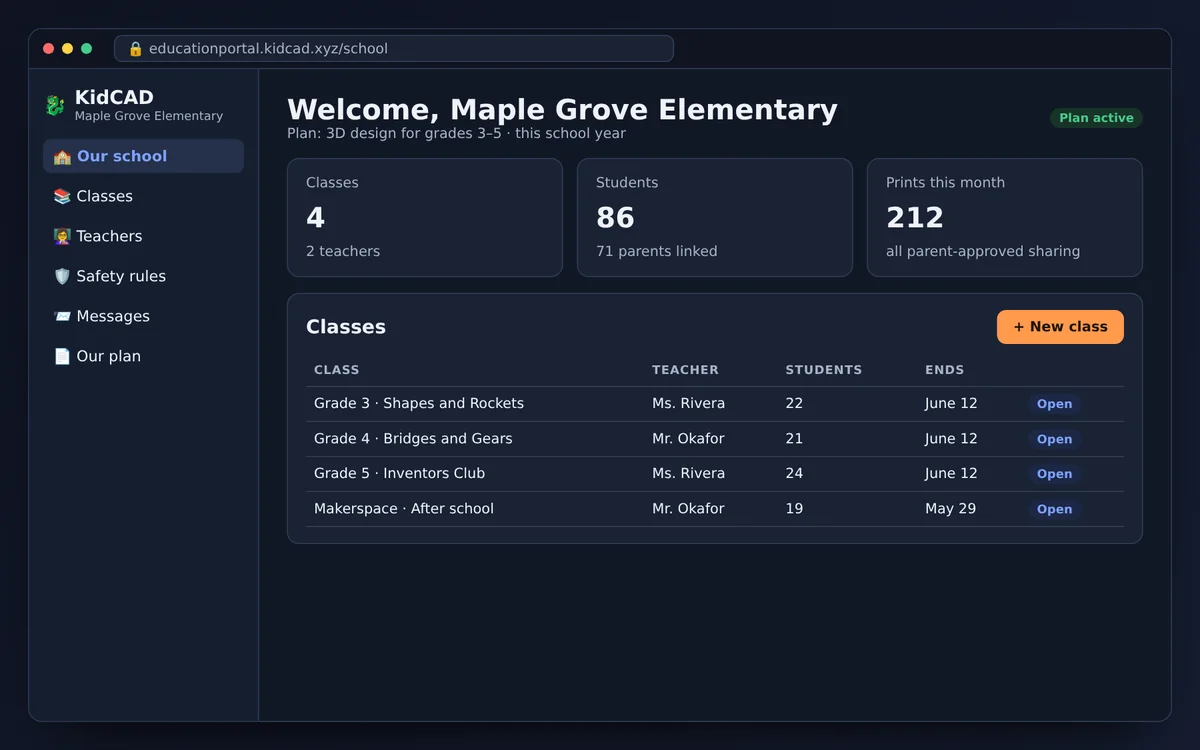
Teachers set up their classes
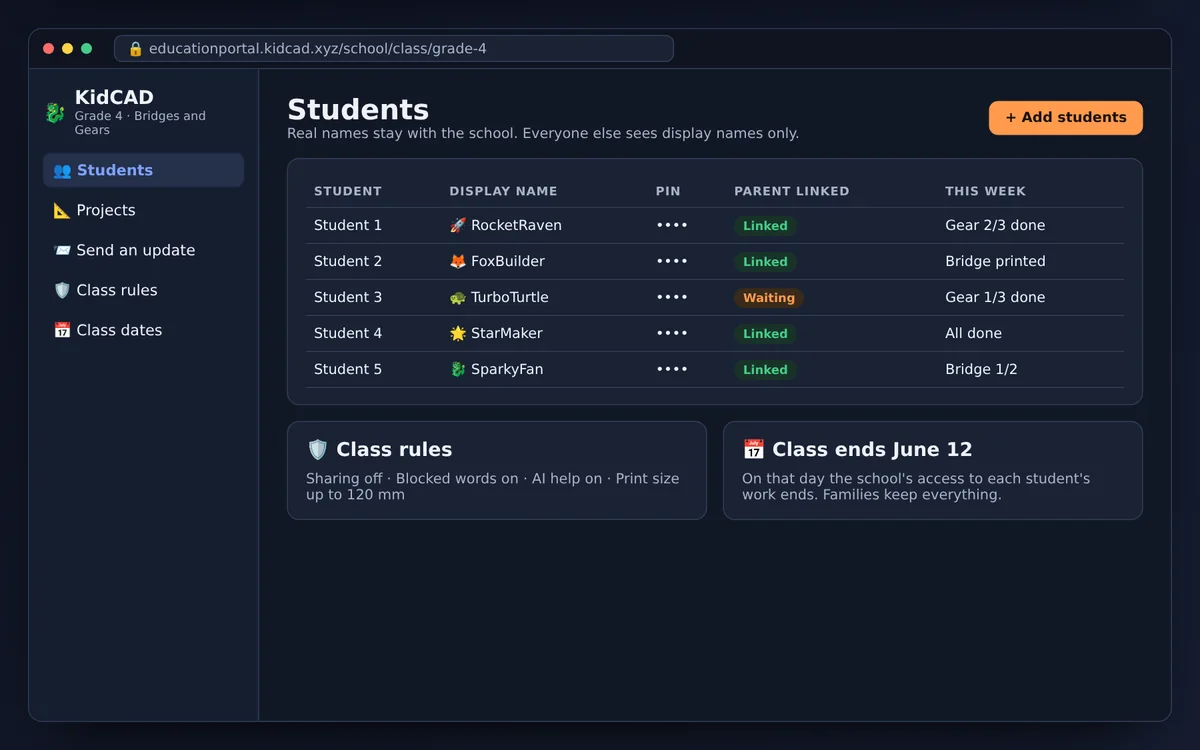
Teachers add each student, give them a PIN, and set the class rules: sharing, blocked words, AI help, print size and the class end date.
- Each student picks a fun display name; real names stay with the school
- Rules can only be made stricter by parents, never looser
- A welcome letter with the PIN goes home to each family
Parents make their own account
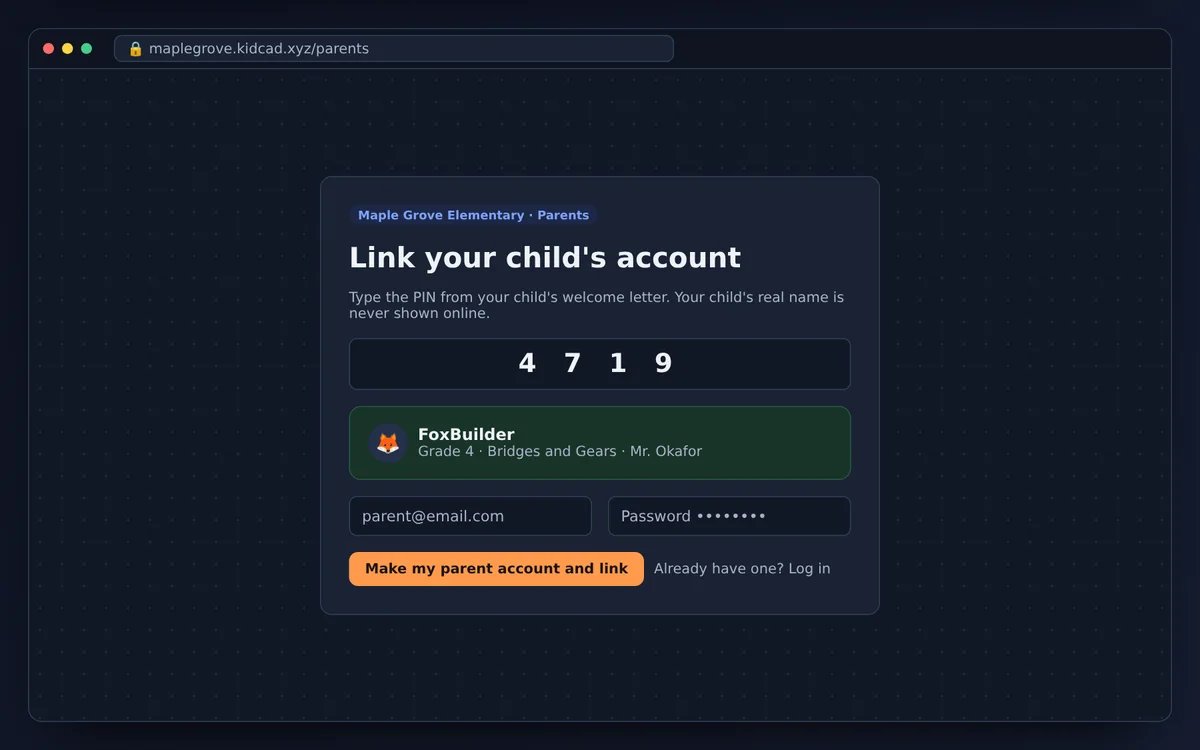
A parent opens the school's page, types the PIN from the welcome letter, and makes their own parent account. The child's account belongs to the family, not the school.
- One parent account for all of a family's children
- No child's real name is shown online
- Already have an account from another school? Just log in and link
The school folder joins the child's account
Linking adds the school as a folder in the child's KidCAD account. Everything made for that class is saved there, online, never on school computers.
- Each school is its own folder
- A new school doesn't see work from earlier schools unless the parent allows it
- The parent can end the school's link at any time
Notes, messages and updates
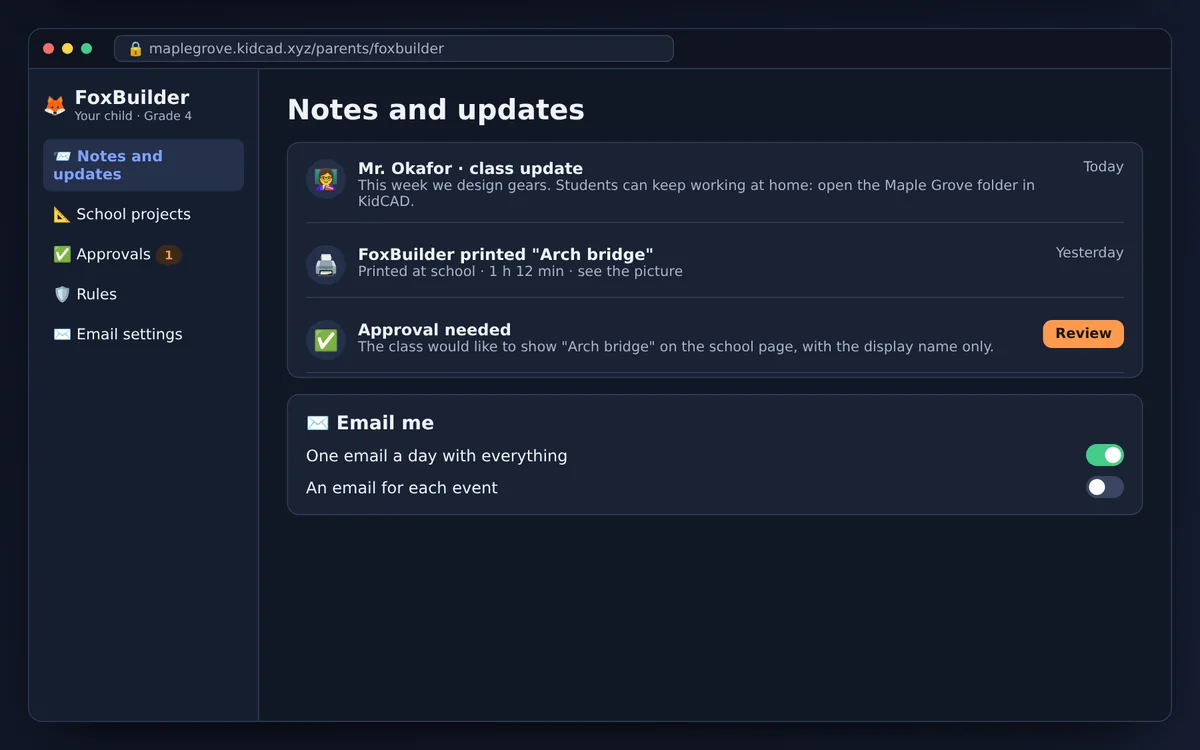
Parents see teacher notes, class news and everything their child makes, inside KidCAD and on the school page, or by email:
- one email a day with everything, an email for each event, or both
- sharing a build, photo or screenshot always needs the parent's approval, each time
- messages come from the teacher and the school, never from strangers
Students keep working at home
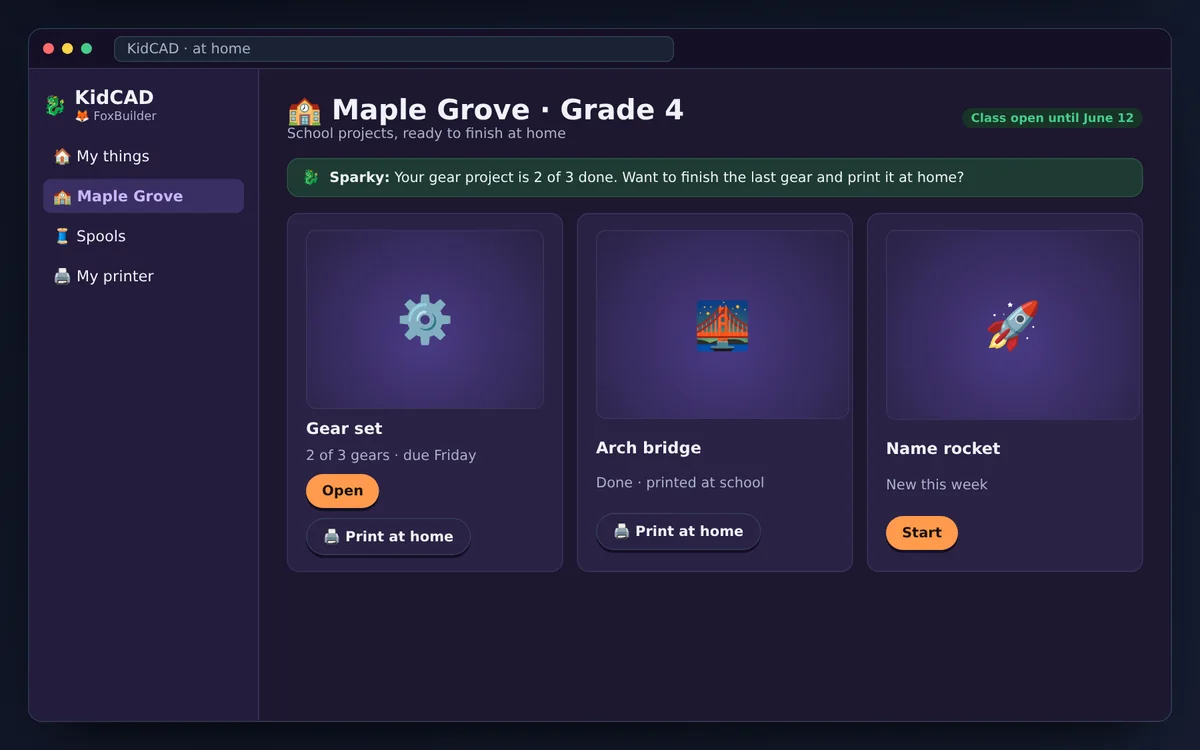
At home, the child opens KidCAD and the school's folder is right there: the same projects, the same class page, with Sparky helping on every step.
- Finish a project started in class
- Start the week's new project early
- Works offline; the work saves to the account when the computer is online
Print school projects at home
Families with a 3D printer can print their child's school projects at home with one button, on their own printer and their own plastic. No printer at home? Everything still prints at school, and the designs are saved to the account.

The class ends
On the class end date, the school's access to the student's work ends that day. The family keeps everything in the school's folder and can download a copy at any time.
Who does what
The school
Signs the plan, names its staff, and owns the class rules for its students.
Teachers
Add students and PINs, set rules and dates, post projects and class news.
Parents
Own the child's account, link schools, choose emails and approve every share.
Students
Design, print and keep learning at school and at home, with Sparky.
KidCAD
Builds the school's KidCAD and page, keeps accounts safe, and supports teachers.
The screens on this page are previews of the KidCAD school system. Names and numbers in them are examples.
Log in to the school program
School staff and parents log in here once their school's plan has started.
Homeschool with KidCAD
Families set up their own KidCAD accounts. There's no contract, no sign-up with us and no waiting: download it, set it up at home, and start learning.

Set up your family in five steps
- Download KidCAD V1
It's free, and it runs on your own Windows, Mac or Linux computer. Get it at kidcad.xyz.
- Make the grown-up PIN
The first time KidCAD opens, a parent sets the grown-up PIN. Only the grown-up can change settings, unlock options and approve requests.
- Add each learner
Give each child their own profile and PIN. Kids pick a fun display name; their real name is never needed.
- Connect your 3D printer
USB, OctoPrint, Klipper or an SD card. No printer yet? Kids can still design and save.
- Start learning
Sparky explains every step. Begin with the lessons on the Learn page and the safety lesson on Safety.
Your family's account
You set it up and you control it. Nothing your child makes is shared without your OK.
Learn at your pace
Design from words, drawings or shapes, then print and hold the result. A natural fit for STEM, art and math.
Works offline
KidCAD runs on your computer with its own AI, so lessons keep going without the internet.
More with V2, V3 and V4
Exact shapes, FreeCAD, Blender, the Stack Store and more. Buying is coming soon.
Homeschool groups and co-ops
Teaching several families together? Ask for a group plan and we'll build one with you.
Questions
Write to [email protected] or use the contact form.
Your child's account is yours
The school uses KidCAD with your child, but the account belongs to your family, from the first class to graduation.
- See everything your child makes in KidCAD at school.
- Email updates the way you like: one a day, one for each event, or both, with links and pictures.
- See your school's safety rules. You can make them stricter for your child, never looser.
- Nothing of your child's is published, and no screenshot is used, without your OK each time.
- Your child picks a fun display name (like an arcade name), and you approve it. Their real name is never shown.
- At home, open the school's folder in KidCAD to see the same class page your child sees, and print their school projects on your own 3D printer.
- Download a copy of everything at any time.
- End the school's link any time.
When your child turns 18
Your child makes their own adult account and moves their KidCAD account to it. You keep a copy of everything up to that day to look back on, but you can no longer use the account. From then on it's theirs to keep and add to, through high school, college and beyond.
Everything a classroom needs, nothing it doesn't
Simple for teachers, safe for students, and built to teach real design skills.

Your rules for every class
Safety settings, limits and blocked words, set by the school for its students.
Teacher updates
Send class news to parents (or to the students themselves in high school and college when they are 18 or older).
Offline in class
KidCAD runs on the school's own computers with its own AI, so classes keep going without the internet.
Saved online, per student
Students' work is saved in their accounts online, not on school machines. Optional cloud graphics power for bigger jobs, kept inside your plan's budget.
Projects and tutorials
Ready-made class projects, step-by-step tutorials and Sparky's help on every screen.
High school and college
Students who are 18 or older get the school code themselves and run their own accounts.

Sharing student work
- A school can share student builds, but never sell them. School-shared builds are always free.
- Every build, photo and screenshot needs the parent's approval, every time.
- Shared work shows the student's display name and your school, for example: "Stacked by VonCon · Trinity Monitor Elementary · built in the KidCAD 3D printing education plan".
- When the school posts KidCAD work on its website, social media or newsletter, it uses our credit line, like a photo credit in a magazine.
Built around children's safety
This is how the plan works. Our full privacy policy and terms for schools are being prepared and will be published here before any school signs up.
- The school never owns a child's account; the parent does, until the child is 18.
- The school's access ends on the day the class ends.
- Nothing is backed up on school computers.
- Parents can see the school's rules, and only make them stricter.
- Nothing is published, and no screenshot used, without a parent's approval each time.
- Students are shown only by a parent-approved display name.
- A new school doesn't see earlier schools' work unless the parent allows it.
- Saved work stays in the family's account. If that ever changes, families get an email 90 days ahead to download it.

A plan that fits your school
KidCAD for schools is cost effective by design. We look at your school's plan or idea, then build a plan and a price for it.

Small schools and programs
10 students and under. Covers the students, their parents and the teachers. Simple and low cost.
Larger schools
A yearly plan based on your size and needs. Optional cloud storage and graphics power are based on use, with a daily budget per student so the plan never runs over.
These are starting points. Every school's plan is written for that school, and paid by the school or through grants. Schools are added by us under their signed plan.
⏳ Online payment is coming soon. Nothing is charged through this website.
About KidCAD
KidCAD was made so kids can design and 3D print their own ideas, safely, on their own computer.
KidCAD turns ideas, drawings and photos into 3D models and prints them. It runs on the family's own computer, with its own AI, and Sparky the dragon explains every step.
KidCAD V1 is free and open source. Families can add more with KidCAD V2, V3 and V4. Schools get a version built for their classes.
Our goal for schools is simple: make 3D design and printing easy to teach, safe for students, and something families can keep using for years.

Learn. Build. Create. Pass It On.
KidCAD's education programs are planned to be run by the KidCAD Charitable Trust, so they can last beyond any one person.
Tell us about your school
We'll get back to you to talk about your plan. No cost, no commitment.

How can we help?
Pick a topic and we'll send your message to the right person. Schools asking for a plan, please use School plans.
KidCAD
PO Box 177
Perrinton, MI 48871
How this website handles your message
- No cookies, no advertising and no tracking on this website.
- A robot check by Cloudflare Turnstile protects every form from spam.
- Your message is emailed to our team and kept in private storage, then deleted after 365 days.
- To see or delete a message you sent, write to [email protected].
Legal and terms
Our terms for schools are being prepared and reviewed. They will be published here before any school signs up.
Questions? Write to [email protected].
Privacy policy
Our privacy policy for schools, parents and students is being prepared and reviewed. It will be published here before any school signs up.
See how the plan protects students on the Safety page.